

WARNING
DISCLAIMER: This page provides convenience resources. We are NOT responsible for troubleshooting your local hardware.
- System Compatibility
- VM Platform Information
- General Troubleshooting Steps
- Common Issues & Solutions
- Project-Specific Troubleshooting
- Quick Reference
General VM Requirements & Support
System Compatibility
❗IMPORTANT
ARM-based Macs NOT Supported: Per course requirements, ARM-based Macs are not supported. No viable alternative exists.
Supported Systems:
- Intel-based Macs - Fully supported
- Intel/AMD-based PCs - Fully supported
- ARM-based Macs - Not supported (M1, M2, M3, etc.)
NOTE
No Support Roadmap: No plan to support ARM chips in the foreseeable future.
VM Platform Information
VirtualBox Specifications:
- Production: VMs created using latest VirtualBox version
- Recommended: Use VirtualBox 7.0.x or latest version
- Alternative platforms: VMware, Parallels, etc. are use-at-your-own-risk
- Limited support: Our ability to provide VM support is limited
VM Release Schedule:
- Timing: VMs released when respective projects open
- Download: Follow project instructions for VM access
General Troubleshooting Steps
Try these solutions before posting questions:
Universal Fixes
- Update software - Ensure latest VirtualBox/VMware/platform version
- Restart computer - Simple but often effective
- Check resources - Verify adequate RAM and storage on host computer
- Reimport OVA - Fresh import can resolve corruption issues
- Disable 3D acceleration - Turn off hardware acceleration
- Enable networking - Verify VM networking enabled (especially Parallels)
VirtualBox-Specific Fixes
- Blank screen: Resize VM screen via View → Virtual Screen 1 → Resize to native resolution
- Resolution issues: Update screen resolution within VM/guest settings
- Display problems: Try View menu → Auto-resize Guest Display
Common Issues & Solutions
Display Problems
Q: VirtualBox shows text on boot then goes to black screen
NOTE
First attempt - View Menu fixes:
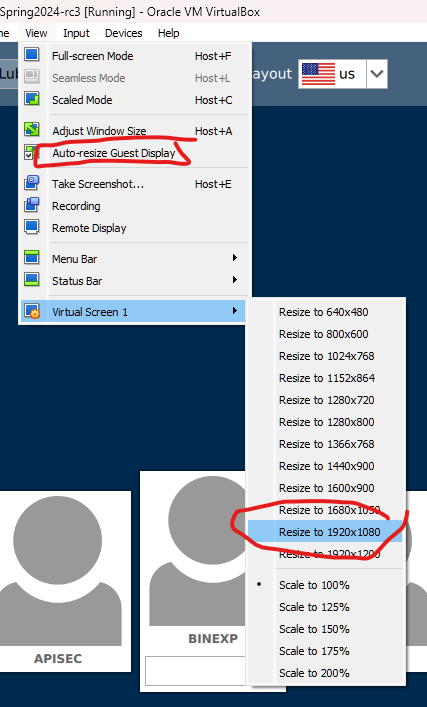
Steps:
- Try View menu → Choose appropriate screen resolution
- Auto-resize option → View menu → “Auto-resize Guest Display”
If View menu doesn’t work:
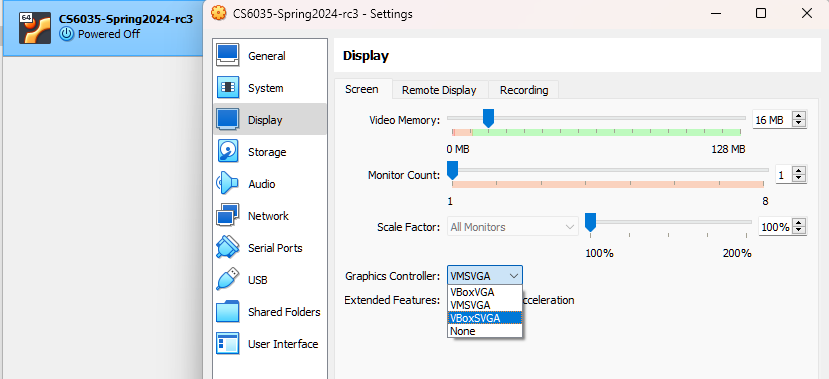
Steps:
- Shut down VM completely
- Open Display settings in VirtualBox
- Change graphics adapter from VMSVGA to VBoxSVGA
This solves black screen problems in most cases.
Q: VirtualBox shows “VBoxClient: Failure Waiting For…” errors
NOTE
Solution: Reduce CPU allocation in VM settings to 1 core.
Installation & Import Errors
Q: “Kernel Driver not installed” errors (Mac)
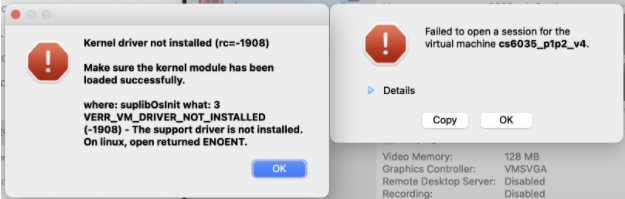
WARNING
Cause: macOS permissions settings issue.
Solution: Follow guide at https://mkyong.com/mac/virtualbox-kernel-driver-not-installed-rc-1908/
Q: “Error When Importing Project E_INVALIDARG (0x80070057)”
❗IMPORTANT
Common causes & solutions:
Insufficient Storage:
- Check disk space - Ensure adequate free space
- File system - Windows requires NTFS for VirtualBox
- Permissions - Verify storage allocation permissions
Work Laptop Issues:
- Secured partitions - May prevent VM import
- Alternative approach - Try different storage location
Additional Help:
- Video guide: https://www.youtube.com/watch?v=7CpkRbVOrpw
Q: “Invalid value ‘WAS’ in AudioAdapter/@driver attribute” (OVA Import)
NOTE
Solution: Upgrade to VirtualBox version 7.X or latest.
Performance Issues
Q: VM freezes or doesn’t start
WARNING
Resource Requirements: VM needs minimum 4GB RAM + 30GB storage dedicated.
Host Requirements:
- Storage: More than double VM requirements for download/install
- RAM: Significantly more than VM allocation
- Reference: Check Technical Requirements
Solutions:
- Verify resources - Ensure host meets requirements
- Close applications - Free up system resources
- Check permissions - Verify storage allocation rights
Project-Specific Troubleshooting
Binary Exploitation Project
VM Requirements & Usage
❗IMPORTANT
VM Required: You cannot complete this project without the provided VM - environment is specifically configured.
WARNING
Critical Submission Note: Create .json files in text editor ON THE VM and submit from VM. Do not use LibreOffice/Word.
File Format Requirements:
- Text editor - Use vim, nano, gedit, etc.
- Proper JSON - Must be valid JSON format for autograder
- Word processors - No LibreOffice, Word, etc.
VM Management
Q: Can I use VM from previous semester?
WARNING
NO: Using previous semester VMs results in 100% penalty. Download current semester VM.
Q: Should I update the VM?
Update Policy:
- No system updates - Do not update the machine
- Additional packages - Can install editors/packages with apt
- Resource allocation - Can increase via VirtualBox settings
Performance Solutions
Q: VM is slow or won’t start
Resource Adjustments:
- Increase RAM - Allocate more memory via VM settings
- Disable 3D acceleration - Turn off in VM settings
- SSH alternative - If GUI too slow, use SSH
SSH Setup for Slow GUI:
- Change network adapter - Set to Bridged Adapter in VirtualBox
- Get IP address - Run
ip acommand in VM - SSH connection - Connect from host using VM’s IP
Q: VM is bricked/non-functional
NOTE
Solution: Restore VM from original OVA file - reimport completely.
Q: User account lacks sudo privileges
Normal behavior: Project account can run apt and snap with sudo - this is sufficient for project requirements.
Database Security Project
Host Connection (Advanced Users)
WARNING
Unsupported but possible: We won’t provide support, but here’s how to connect from host computer.
VirtualBox Setup:
- Stop conflicting services - Stop IIS/Apache on port 80 if running
- Find VM IP - Get VM IP address and configure network communication
- Start VM - Preferably headless to save resources
- SSH tunnel - Run:
ssh -p 22 -L 127.0.0.1:80:127.0.0.1:80 -L 127.0.0.1:1433:127.0.0.1:1433 dbsec@localhost - Start container - Run ./StartContainer.sh in terminal
Host File Configuration
WARNING
Advanced users only - Remove entries when finished!
The VM uses: www.gt-cs6035.com (not localhost)
Host file locations:
- Windows: c:\Windows\System32\Drivers\etc\hosts (needs admin)
- Linux: /etc/hosts
- Mac: /private/etc/hosts
Add this line:
127.0.0.1 www.gt-cs6035.com
Access URL: http://www.gt-cs6035.com
Database Management Tools
For external DB tools (Azure Data Studio, SQL Server Management Studio, DataGrip):
- Stop local SQL Server - If running on host
- Download tool - Install preferred management tool
- Configure connection - Use VM SQL Server via tunnel
-
Reference: See Background and Setup
API Security Project
Host Connection (Advanced Users)
WARNING
Unsupported but possible: Connect to Swagger instance from host computer.
VirtualBox SSH Setup:
- Find VM IP - Configure network for host communication
- SSH tunnel - Run:
ssh -p 22 -L 8080:127.0.0.1:8080 apisec@localhost - Access URL - Open http://localhost:8080/swagger/index.html on host
Quick Reference
Universal Troubleshooting Steps:
- Update virtualization software to latest version
- Restart computer
- Check host system resources
- Reimport OVA file
- Disable 3D acceleration
- Enable VM networking
Display Issues:
- Try View menu resolution options
- Change graphics adapter to VBoxSVGA
- Reduce CPU cores to 1
- Auto-resize guest display
Import/Installation Issues:
- Check disk space and permissions
- Upgrade to VirtualBox 7.X
- Use NTFS file system (Windows)
- Review macOS permissions settings
Need More Help?
- Technical requirements: Technical Requirements
- General questions: Ed Discussion
- Hardware concerns: Verify system compatibility first